
For Agents New to AI
Build YourAI Back Office
Most agents use AI like a search box. The agents pulling ahead use it like a coworker that does real work. This page gets you there in one setup session.
What you'll have after one setup session
Claude set up on your computer the right way
A folder where it works safely, away from your important files
Short notes that teach it your market and your voice, so it stops sounding generic
Three specialist briefs personalized and ready for the work that eats your week
A setup assistant that does most of this for you while you approve each move

"I'm saving 10-15 hours a week thanks to Claude!"
Sibel Caliskanlar
REN Agent
Short on time? Start here
Do just this today: install Claude (Step 1), create and connect your folder (Steps 2 and 3), then get the setup assistant from the guided setup box in Section 2, attach it to a new task inside your Cowork HQ project, and paste the kickoff line. Answer its questions honestly. That alone gives you a working AI back office. Come back for the five-part brief when you are ready. Do not try to set up everything at once.
A coworker, not a search box
A chatbot answers questions. An AI back office does the work: you hand it a job and the files, and it works the plan while you watch.
Setup takes one focused session. Think of it like training a new hire, except:
- One session, not their whole first month
- It never forgets what you teach it
- It never quits, and it works nights and weekends
That one session buys back the parts of your week that are not selling: listing prep, lead follow-ups, the same emails, market updates. A big team hires people for that. You train one assistant once, and it all stays in one safe folder.
Stay safe: four rules
- Review everything before it goes out. Claude drafts. You decide.
- Never let it send anything to a client on its own.
- Verify any number, price, or fact. Claude does not have live MLS data, so check before it reaches a client.
- Never paste a client's financial or personal details. Use general terms like "buyer approved around 400K." Your broker's rules always come first.
Build the room where it works
Two ways to do this. The fast way: get the setup assistant and let Claude run the steps with you. The manual way: follow the six steps below and see everything it does.
The guided setup
Three moves:
- Do Steps 1 to 3 below: install Claude, create your Cowork HQ folder, connect it. The folder can stay empty.
- Get the setup assistant.
- Start a task inside your Cowork HQ project, attach the file, and paste the kickoff line.
Claude does the rest while you approve each move: your folders, your rules, your interview, your first three specialist briefs, a setup check, and your first real task. It hands you the one step it cannot do, pasting your global instructions into Settings.
Free. Three quick things and the file is yours. No account, no password.
On your phone? Do this part on your computer. The file gets attached there.
Start a new task inside your Cowork HQ project, attach the downloaded file, and paste this:
Kickoff (paste with the file attached)
Read the attached file and follow it. Set up my AI back office step by step.
Prefer to do it by hand? Steps 4 to 6 below finish the same job, with screenshots.
When you are ready for more, the assistant can build you seven more specialists. See the full bench in the specialists section below.
BOTH PATHS
Install Claude on your computer
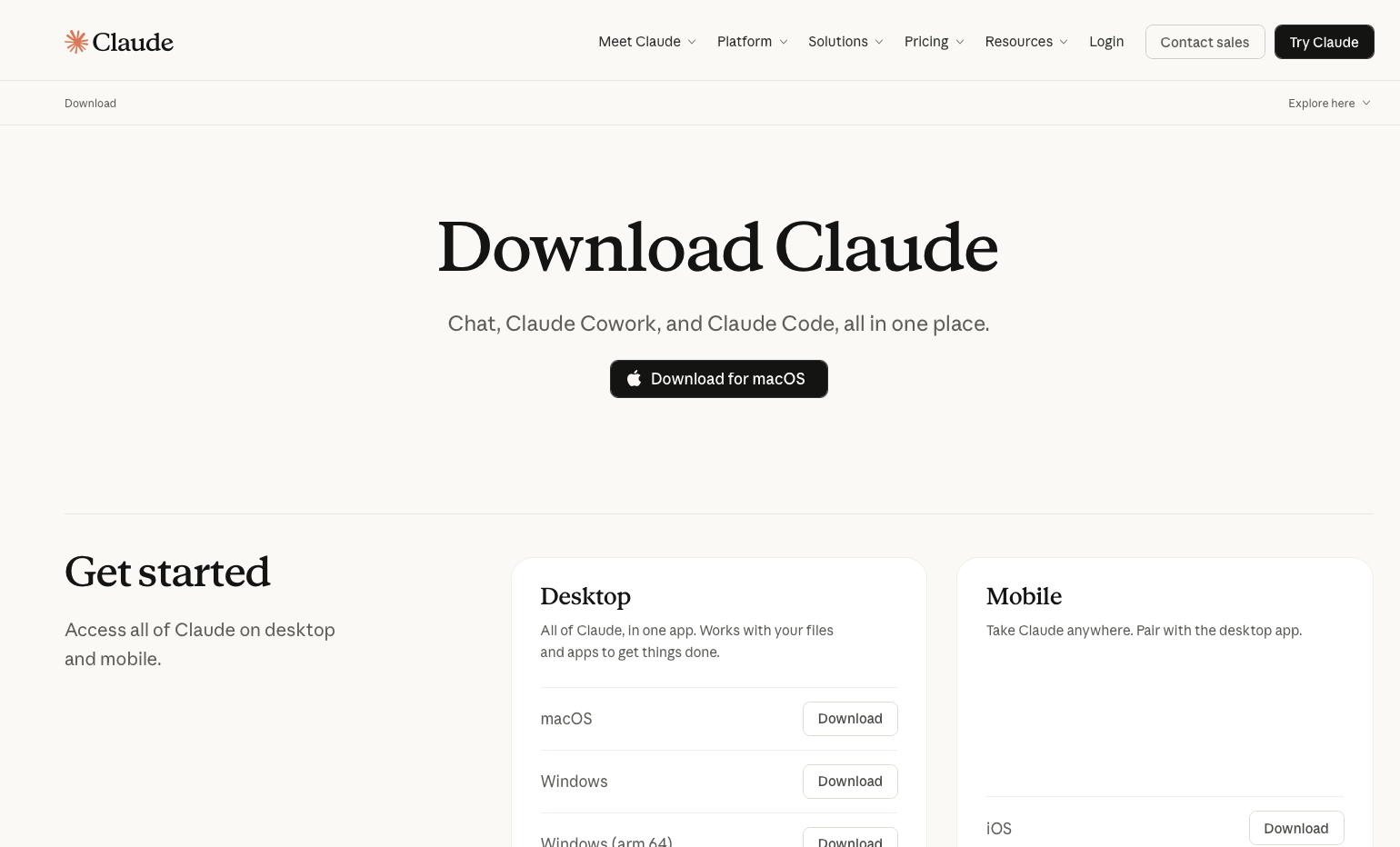
Go to claude.com/download, install the Claude desktop app, and sign in.
The non-negotiables:
- •A paid Claude plan (Pro, Max, Team, or Enterprise). The free tier will not work.
- •Desktop only, on a Mac or Windows computer. It does not run on mobile.
- •Keep the Claude desktop app open and your computer awake while Cowork is working.
- •You need an internet connection.
BOTH PATHS
Create your Cowork HQ Folder
Using the setup assistant? Stop after creating the empty folder. It builds the subfolders for you.
Make a new folder. Mine lives in Documents (pick something easy for you).
Name it: Cowork HQ.
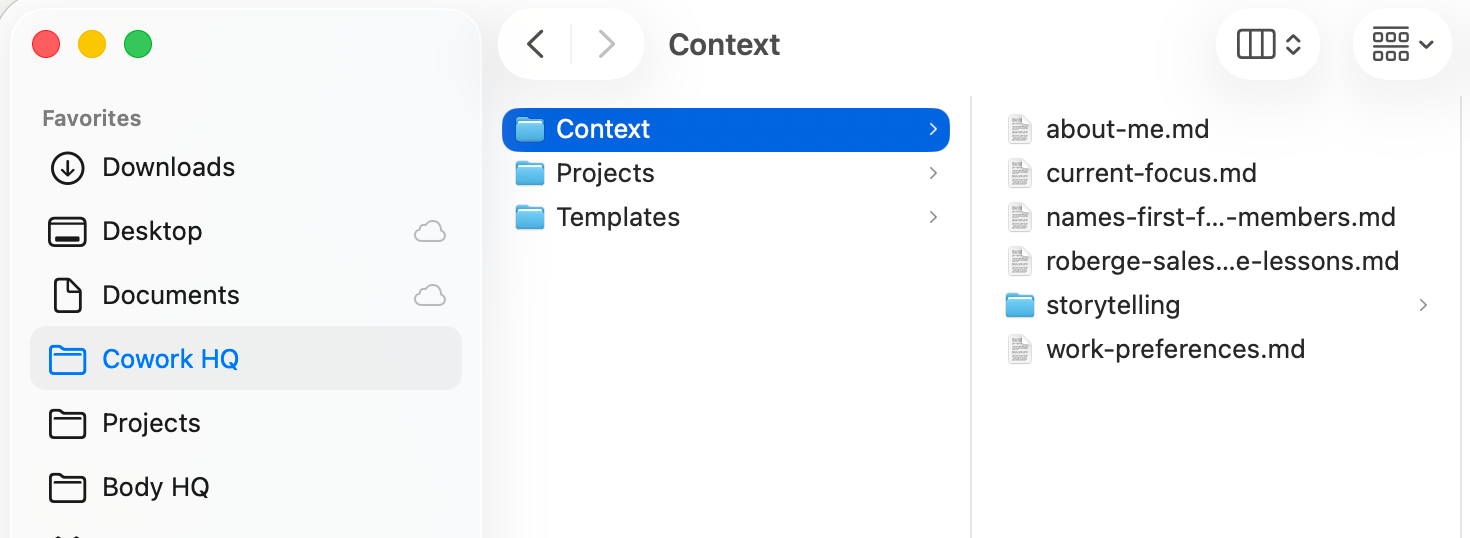
Inside Cowork HQ, create three subfolders:
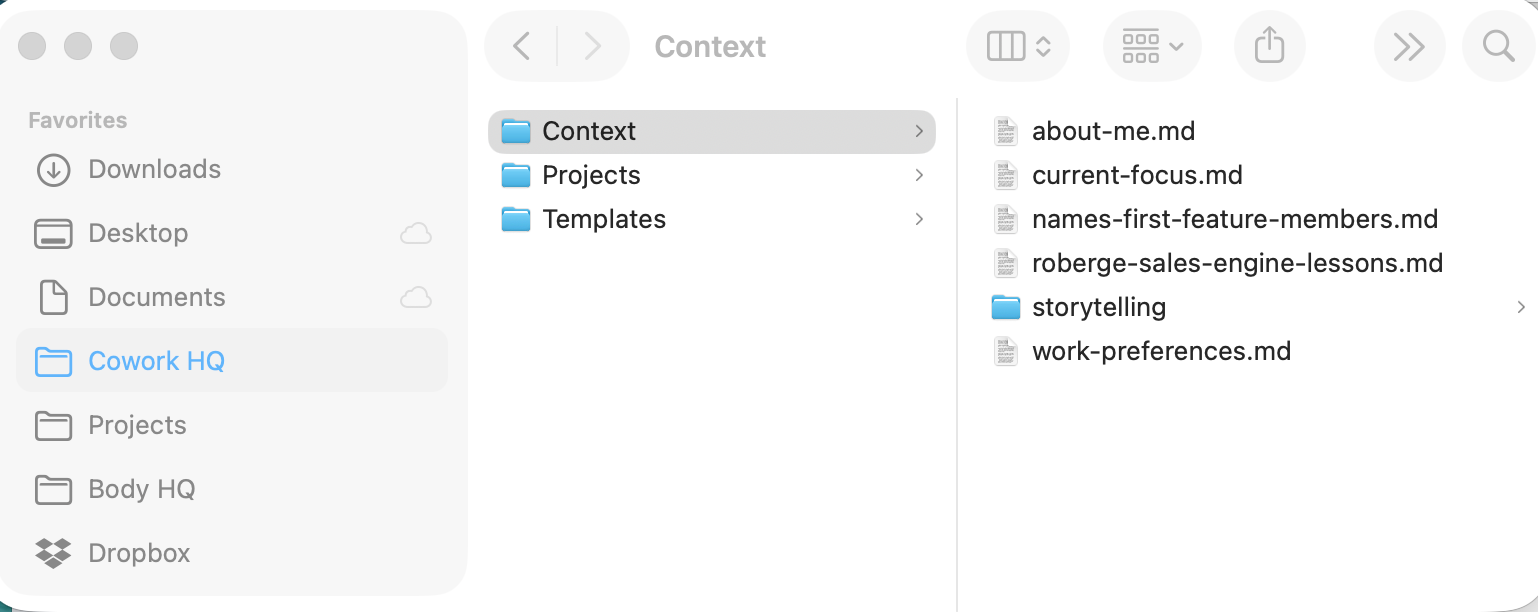
Here's what each folder does:
- •Context - References about you and what you care about. Cowork reads these before doing work.
- •Projects - Files, details and outputs per project.
- •Templates - Reusable examples of common activities and outputs you like.
BOTH PATHS
Connect the folder
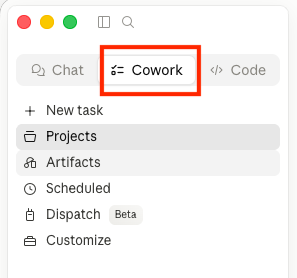
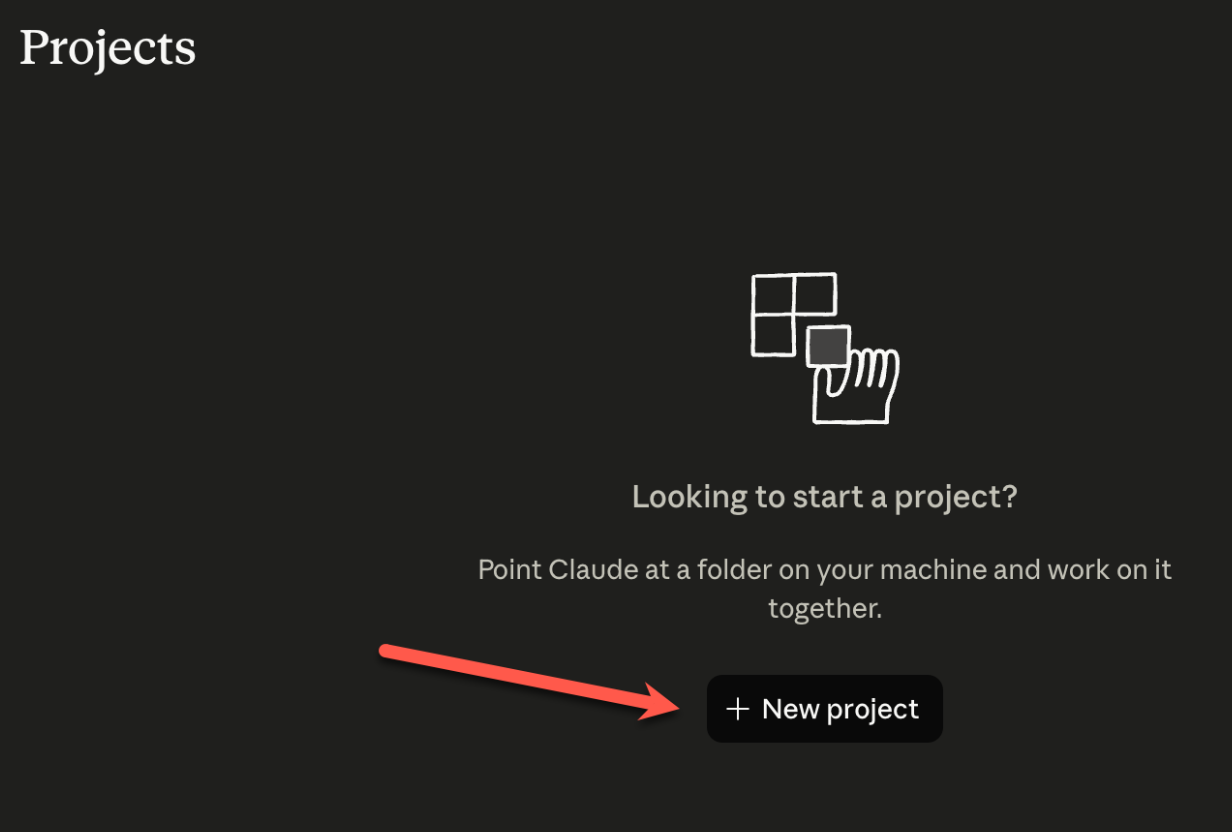
1. Open the Claude desktop app and switch to Cowork (the middle option).
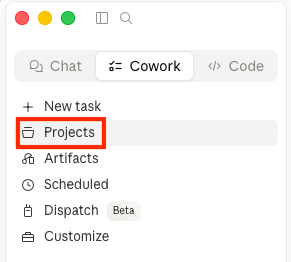
2. Click Projects in the left menu.
3. Click New project.
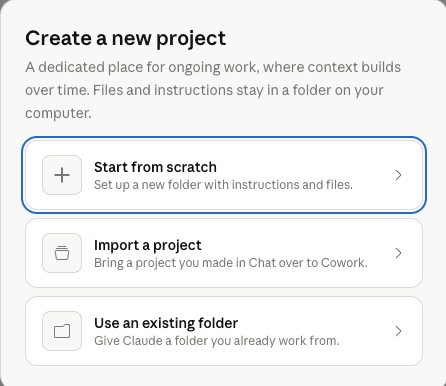
4. Click Use an existing folder, then select the Cowork HQ folder you created in Step 2.
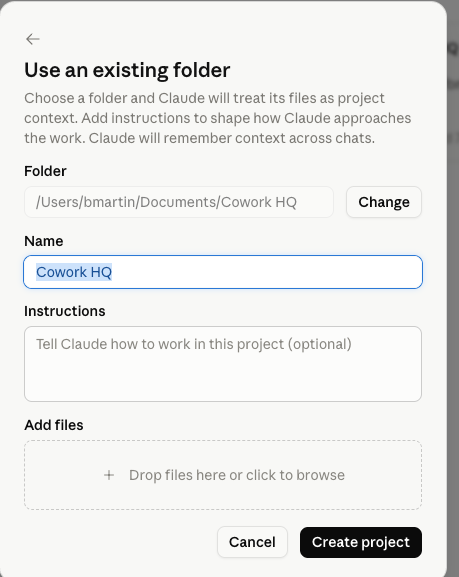
5. Name the project Cowork HQ and click Create.
6. If your computer asks you for read and write access, approve it.
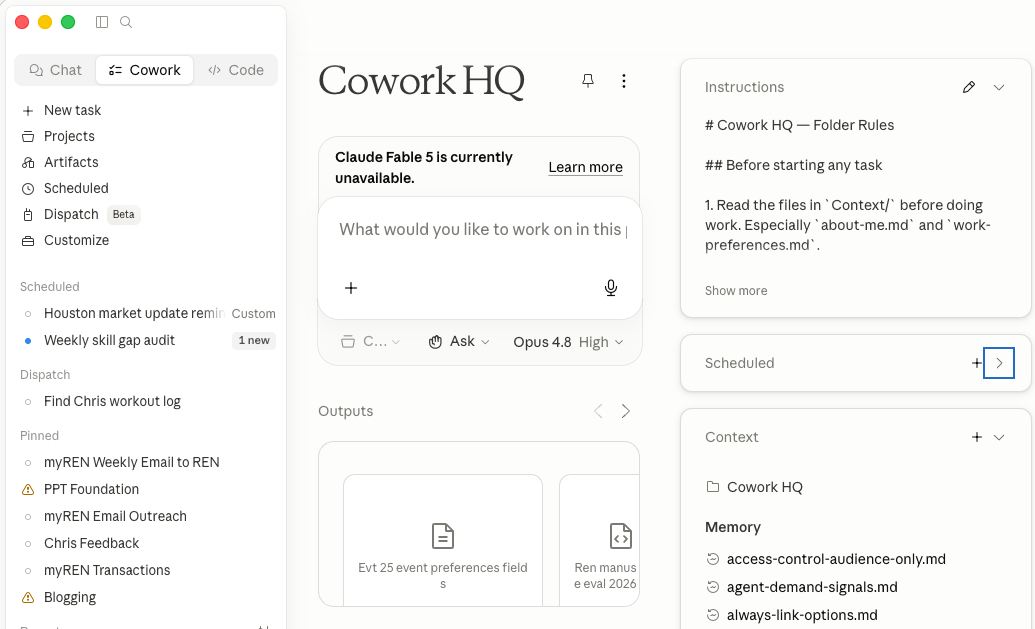
From here forward, everything you run with Claude lives inside this project. You can find all your Claude materials inside this folder.
If you did everything correctly, it should look similar to this:
MANUAL PATH ONLY
Set your global instructions
Global instructions apply to everything you do in Claude, in every project. You set them once.
Using the setup assistant? It handles Steps 4 to 6 with you in the chat, so you can stop reading here. Your specialists are already saved in your Templates folder.
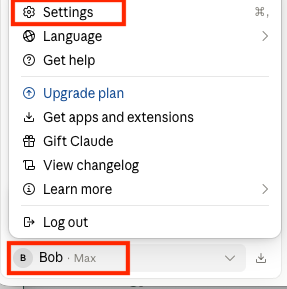
1. Open Cowork settings by clicking your name in the lower left corner, then click Settings.
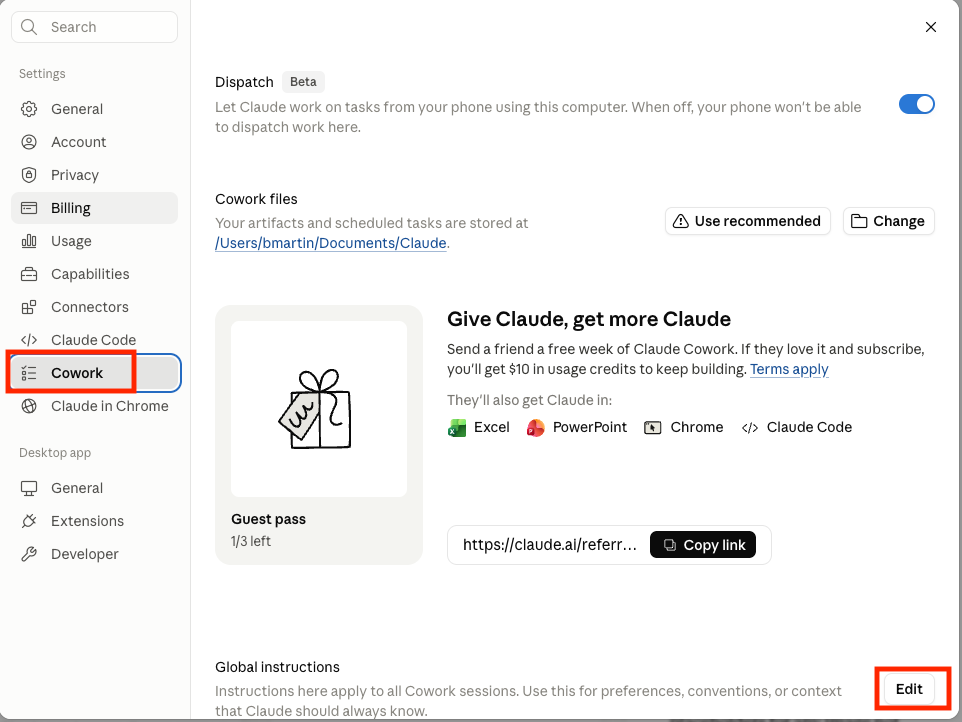
2. Click Cowork in the left menu, then click Edit in the lower right.
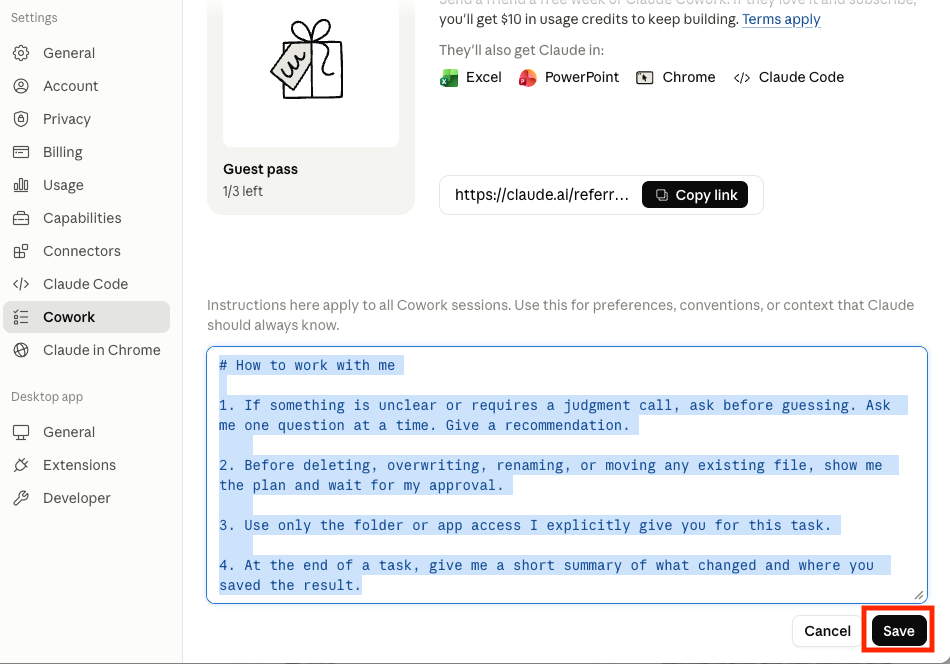
Global Instructions (paste into Settings > Cowork > Global instructions)
# How to work with me
1. If something is unclear or requires a judgment call, ask before guessing. Ask me one question at a time. Give a recommendation.
2. Before deleting, overwriting, renaming, or moving any existing file, show me the plan and wait for my approval.
3. Use only the folder or app access I explicitly give you for this task.
4. At the end of a task, give me a short summary of what changed and where you saved the result.
Then click Save.
MANUAL PATH ONLY
Set your folder instructions
Set the rules that apply only inside Cowork HQ.
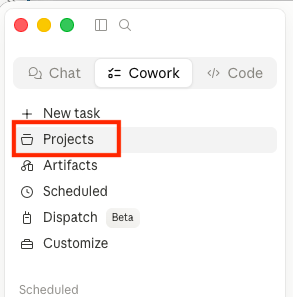
1. Click Projects to navigate back to your projects.
2. Click Cowork HQ to get back to your Cowork HQ folder.
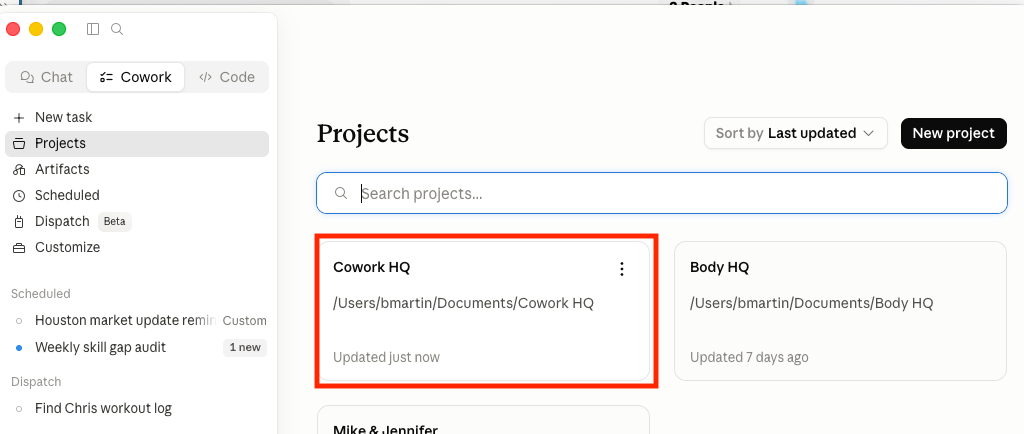
3. Click Edit Instructions in the top right.
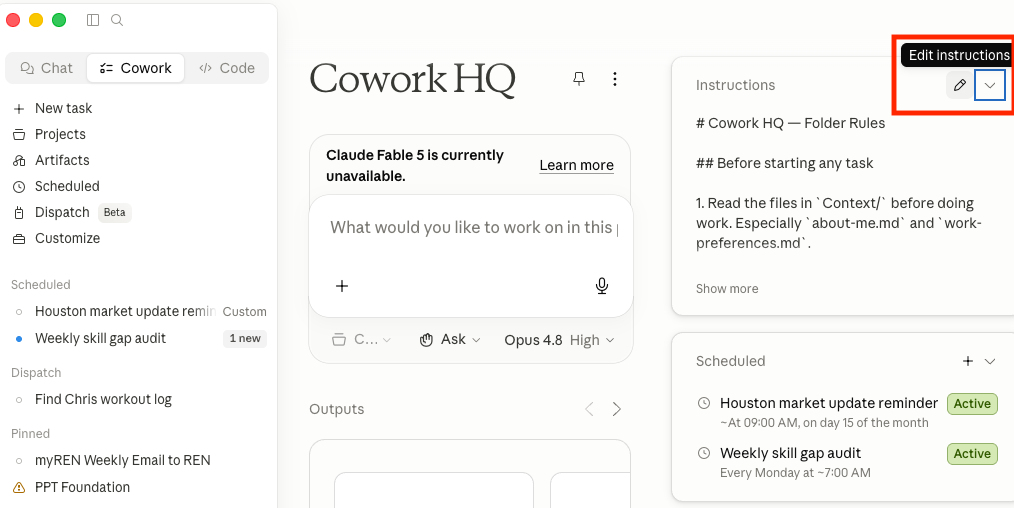
4. Paste the following instructions inside the panel that opens.
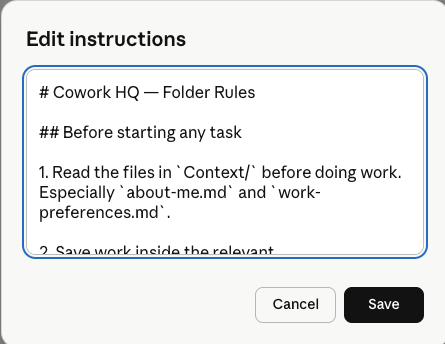
Folder Rules (paste into Edit Instructions)
# Cowork HQ — Folder Rules
## Before starting any task
1. Read the files in `Context/` before doing work. Especially `about-me.md` and `work-preferences.md`.
2. Save work inside the relevant Projects/<project> folder.

Folder map
Context/ — read these to understand me and how I work.
Projects/ — one folder per project; inputs and finished work live together. Subfolders only when a project gets crowded.
Templates/ — reusable examples of good output.
Save it. Cowork stores this as CLAUDE.md at the root of Cowork HQ, so you can open and edit it later. This is a rules file that Cowork reads every time you start a new task.
When the AI shows you a plan before it acts, read it. If something looks off, say so before you approve. The one time you wave a plan through is the time a file ends up somewhere you cannot find it.
MANUAL PATH ONLY
Teach Claude about you
These three files in your Context folder are the difference between Claude being a personal assistant who knows you and a generic AI that does not give you what you want.
You do not have to write them yourself. Claude will help you.
1. Click New Task in the upper left of Cowork.
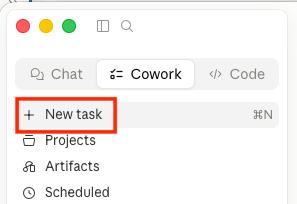
2. Make sure Cowork HQ is selected as the project folder before you start.
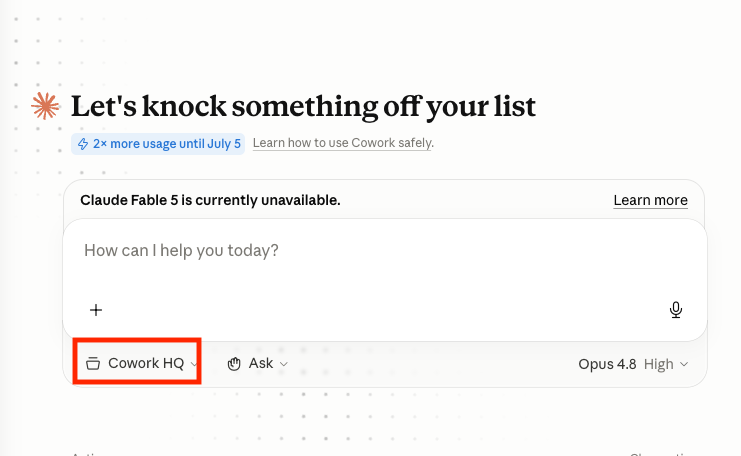
3. Copy in the following prompt:
The Setup Prompt (paste this to start)
You are helping me set up my AI back office. I am a real estate agent.

First, interview me one question at a time. Wait for each answer before the next question. Ask only what you need, and push for a specific example when an answer is vague. Cover four things:
1. Who I am: my market, what I sell, how long I have been doing this, what makes me different.
2. How I work: how I want you to talk to me, where to save files, when to ask before acting, what "done" looks like.
3. What I am focused on right now: my goals this quarter, active projects, and what I am saying no to.
4. The repeatable work that eats my week: the tasks I do over and over that are not selling.

When you have enough, write three short markdown files and save them in the Context folder:
- about-me.md
- work-preferences.md
- current-focus.md
Keep each file short enough to read quickly at the start of future tasks.

Then look at the repeatable work I described, recommend the single best task to hand you first, and run it for me as a complete job. Show me your plan and wait for my approval before you touch any files.
Cowork will start asking you questions. Answer them honestly and completely. The more specific you are, the better an assistant it becomes for you.
When it is done, you will have three files in your Context folder. You can edit them later and add to them over time as you have more direction for Claude.
The five-part brief
After setup, this is the only format you need to hand your back office a job. A brief is a one-paragraph job description. Five parts:
Brief Template (copy and fill in)
ROLE: You are my ______.
GOAL: I am trying to ______ so that ______.
TASK: ______. Save the result to Projects/______/.
CONTEXT: Read the files in Context/ first. Also know that ______.
CONSTRAINTS:
- ______
- Show me the plan and wait for approval before any file changes.
- Plain English. No filler.
Your bench of specialists
These are the jobs agents hand their back office first. Used the setup assistant? Your first three are already personalized and saved in your Templates folder, so skip the cards and check the full bench below. Building by hand? Each card is a prompt: copy it, paste it into a new task inside your Cowork HQ project, answer a few questions, and Claude saves your personalized brief to your Templates folder.
Client email writer
Best for the emails you send clients over and over.
Personalizes a client-email brief to how you write, then saves it so you can reuse it any time.
PERSONALIZE THIS BRIEF
You are helping me personalize a director brief. A director brief is a reusable prompt I paste whenever I want you to do a specific job for me.

Below is a draft "client email" brief another agent uses. First read it. Then interview me one question at a time about how I actually email clients: my tone, the situations I face most, what I like and do not like about this draft, and anything missing. Ask only what you need and wait for each answer.
...
You are helping me personalize a director brief. A director brief is a reusable prompt I paste whenever I want you to do a specific job for me.

Below is a draft "client email" brief another agent uses. First read it. Then interview me one question at a time about how I actually email clients: my tone, the situations I face most, what I like and do not like about this draft, and anything missing. Ask only what you need and wait for each answer.

When you have enough, rewrite the brief so it fits how I work and sounds like me, and save it to my Templates folder as client-email-brief.md. After that, I can paste it whenever I need to write a client email.

Here is the draft to personalize:
---
ROLE: You are my client email writer.
GOAL: Draft a clear, warm email to a client in my voice that I can review and send today.
TASK: First ask which situation this is (post-showing follow-up, status update, price-reduction conversation, past-client check-in, or hard news). Then ask for the key facts and the outcome I want. Read my Context files. Write the email and save it to Projects/Client Emails/.
CONTEXT: Match my voice from my work-preferences file. Write about the client, not about me.
CONSTRAINTS:
- Short, usually under 150 words. Warm, not pushy.
- Plain English. No jargon or hype.
- Keep any neighborhood mention fair-housing safe: describe the home and the facts, not the people.
- Do not promise outcomes you cannot back up.
- Show me the draft. Do not send anything.
---
Listing prep assistant
Best for the night before a listing appointment.
Personalizes a listing-prep brief to how you run appointments, then saves it to reuse before every listing.
PERSONALIZE THIS BRIEF
You are helping me personalize a director brief. A director brief is a reusable prompt I paste whenever I want you to do a specific job for me.

Below is a draft "listing prep" brief another agent uses. First read it. Then interview me one question at a time about how I run listing appointments: what I want to walk in with, what I like and do not like about this draft, and anything missing. Ask only what you need and wait for each answer.
...
You are helping me personalize a director brief. A director brief is a reusable prompt I paste whenever I want you to do a specific job for me.

Below is a draft "listing prep" brief another agent uses. First read it. Then interview me one question at a time about how I run listing appointments: what I want to walk in with, what I like and do not like about this draft, and anything missing. Ask only what you need and wait for each answer.

When you have enough, rewrite the brief so it fits how I work, and save it to my Templates folder as listing-prep-brief.md. After that, I can paste it before any listing appointment.

Here is the draft to personalize:
---
ROLE: You are my listing appointment prep assistant.
GOAL: Get me ready to walk into a listing appointment confident and ready to win it.
TASK: First ask for the property address, any notes I have, and what I most want from the appointment. Read my Context files. Turn web search on for recent nearby sales and neighborhood facts. Then build a one-page prep sheet: the seller's likely goals and worries, three to five smart questions to ask, recent comparable sales nearby, and a simple talking point for pricing. Save it to Projects/Listing Prep/.
CONTEXT: Assume I read this on my phone right before the meeting.
CONSTRAINTS:
- Fits on one page. Plain English, no jargon.
- Do not invent prices or facts. Cite a source for each number and mark anything unsure as VERIFY.
- Keep any neighborhood mention fair-housing safe.
---
Past-client check-in
Best for staying in touch with past clients and your sphere.
Personalizes a check-in brief to your voice, then saves it so you can reuse it any time.
Used the setup assistant and you are at Real? It saved the attraction brief instead. Ask it for this one from its menu, or use this card.
PERSONALIZE THIS BRIEF
You are helping me personalize a director brief. A director brief is a reusable prompt I paste whenever I want you to do a specific job for me.

Below is a draft "past-client check-in" brief another agent uses. First read it. Then interview me one question at a time about how I stay in touch with past clients: my tone, how often I reach out, what I like and do not like about this draft, and anything missing. Ask only what you need and wait for each answer.
...
You are helping me personalize a director brief. A director brief is a reusable prompt I paste whenever I want you to do a specific job for me.

Below is a draft "past-client check-in" brief another agent uses. First read it. Then interview me one question at a time about how I stay in touch with past clients: my tone, how often I reach out, what I like and do not like about this draft, and anything missing. Ask only what you need and wait for each answer.

When you have enough, rewrite the brief so it fits how I work and sounds like me, and save it to my Templates folder as past-client-checkin-brief.md. After that, I can paste it whenever I want to check in with someone.

Here is the draft to personalize:
---
ROLE: You are my past-client check-in writer.
GOAL: Keep me in real touch with past clients and my sphere so I stay their agent for life, without sounding salesy.
TASK: First ask who this is for (one person or a short list), what I last did with them, and anything new I know (home anniversary, neighborhood news, a life event). Read my Context files. Write a short personal note and save it to Projects/Client Emails/.
CONTEXT: The goal is a real human touch, not a newsletter. Write about them, not about me.
CONSTRAINTS:
- Under 120 words. Personal, warm, zero sales pressure.
- Plain English. No jargon or hype.
- Do not invent details about their home or life; ask me if unsure.
- Keep any neighborhood mention fair-housing safe.
- Show me the draft. Do not send anything.
---
Agent attraction email
Best for REN members reaching out to an agent who might be a fit.
Personalizes an attraction-email brief to your voice and your booking link, then saves it to reuse.
For agents already at Real or in REN.
PERSONALIZE THIS BRIEF
You are helping me personalize a director brief. A director brief is a reusable prompt I paste whenever I want you to do a specific job for me.

Below is a draft "agent attraction email" brief another agent uses. First read it. Then interview me one question at a time about how I reach out to other agents: my tone, my own booking link, what I like and do not like about this draft, and anything missing. Ask only what you need and wait for each answer.
...
You are helping me personalize a director brief. A director brief is a reusable prompt I paste whenever I want you to do a specific job for me.

Below is a draft "agent attraction email" brief another agent uses. First read it. Then interview me one question at a time about how I reach out to other agents: my tone, my own booking link, what I like and do not like about this draft, and anything missing. Ask only what you need and wait for each answer.

When you have enough, rewrite the brief so it fits how I work and sounds like me, and save it to my Templates folder as attraction-email-brief.md. After that, I can paste it whenever I want to reach out to an agent.

Here is the draft to personalize:
---
ROLE: You are my agent attraction writing partner. You help me write emails that make the right agents open to a conversation about Real and REN, without sounding hypey or like a recruiter.
GOAL: Earn attention and trust and make the next step easy. Not to convince anyone with hype.
TASK: First ask whether I just finished a call with this person or it is cold or warm outreach. Then ask who they are and what I know about them. Read my Context files for my voice. Write a short, personal email that leads with relevance, not a pitch, and ends with a low-pressure next step and my own booking link. Save it to Projects/Attraction Emails/.
CONTEXT: The job is to help the other agent make a wise decision about their options, not to sell them.
CONSTRAINTS:
- Cold or warm outreach under 150 words. Plain English, "you" language.
- Use my own booking link: [paste your booking link here]. If I have not given you one, ask me before using anyone else's.
- Do not promise or imply any income, earnings, or guaranteed success.
- No hype, no fake urgency, no "downline" or mass-recruiting language.
- Do not give legal or tax advice.
- Strip any ref tag from a link before including it.
- Show me the draft. Do not send anything.
---
The rest of the bench
Inbox replies
Paste the emails piling up, get drafts back in your voice.
LinkedIn profile rewrite
A headline and About section that earn trust, built from your real wins.
LinkedIn expert posts
Posts that make you the local expert, grounded in your real deals.
One idea into a week of content
One win becomes a post, an email, and a video script.
Meeting prep
Walk into any meeting with the background and the right questions.
Your daily call plan: five to ten calls, with a reason and an opener for each.
Review and testimonial engine
The review ask after every closing, and calm replies to every review.
The setup assistant builds any of these for you, personalized. Get it in the guided setup box in Section 2 and tell it which one you want.
You're set up when...
You installed Claude on your computer and signed in with a paid plan
Your Cowork HQ folder has Context, Projects, and Templates inside
You set your global and folder instructions
Claude interviewed you and saved your three context files
In a Cowork HQ task, you asked Claude to check your folder setup against this list, and you confirmed your global instructions yourself
You handed it your first real job with the five-part brief
Keep your first dozen tasks inside Cowork HQ. If something goes sideways, it goes sideways where nothing important lives.
Pass this along
Already at Real with REN? Send this page to an agent who would use it.
Related Resources
If something is not working
- •Claude says it cannot see your folder or cannot create files: you are in Chat, not Cowork, or the folder is not connected. Switch to Cowork and check Step 3.
- •Claude says it cannot read the downloaded file: download it again and re-attach it. If Claude reads it but cannot create files, see the item above.
- •Setup got interrupted (computer slept, app closed, you ran out of time): start a new task inside your Cowork HQ project, attach the downloaded file again, and say "resume my setup." It picks up where you left off. If setup got far enough, saying "resume my setup" works without re-attaching.
- •Setup stalls partway: keep the Claude app open and your computer awake while it works, then say "resume my setup."
- •You cannot switch to Cowork or start a project at all: you need a paid Claude plan (Step 1).
- •Claude forgot everything you taught it: you started a task outside your Cowork HQ project. Always start tasks inside it.
- •Your computer never asked for folder access: quit and reopen the Claude desktop app, then redo Step 3.
- •Want a new specialist later: download the setup assistant from the guided setup box in Section 2 and attach it to a task inside Cowork HQ. It works the same after setup.
- •Anything else: text us. The number is below.
Stuck on setup? Text HPT's success team at (281) 729-9180 and tell us where you got stuck. We will walk you through it.